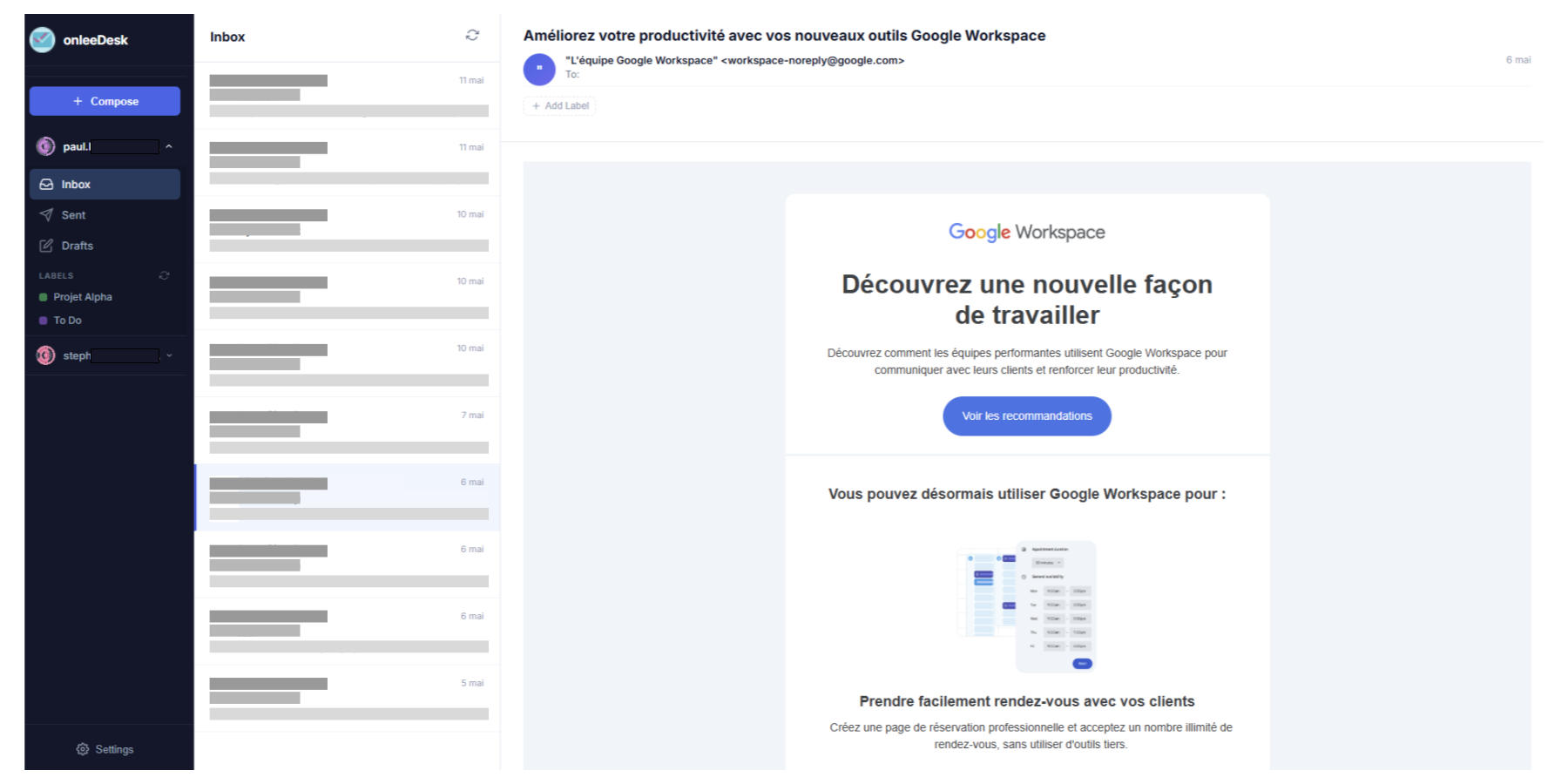
Help & Documentation
Contents
Setup onleeDesk
Install the application from the marketplace for all the user collectors accounts and users using onleeDesk. You can install the app for the whole domain or just install the app for users that will use it by creating a Google group.
Once the application is installed, you can open onleeDesk as the Workspace add-on.
The account that performs the setup becomes the primary admin account, and you can manage the setup of onleeDesk using this account.
1 First, define the email of the collector account.
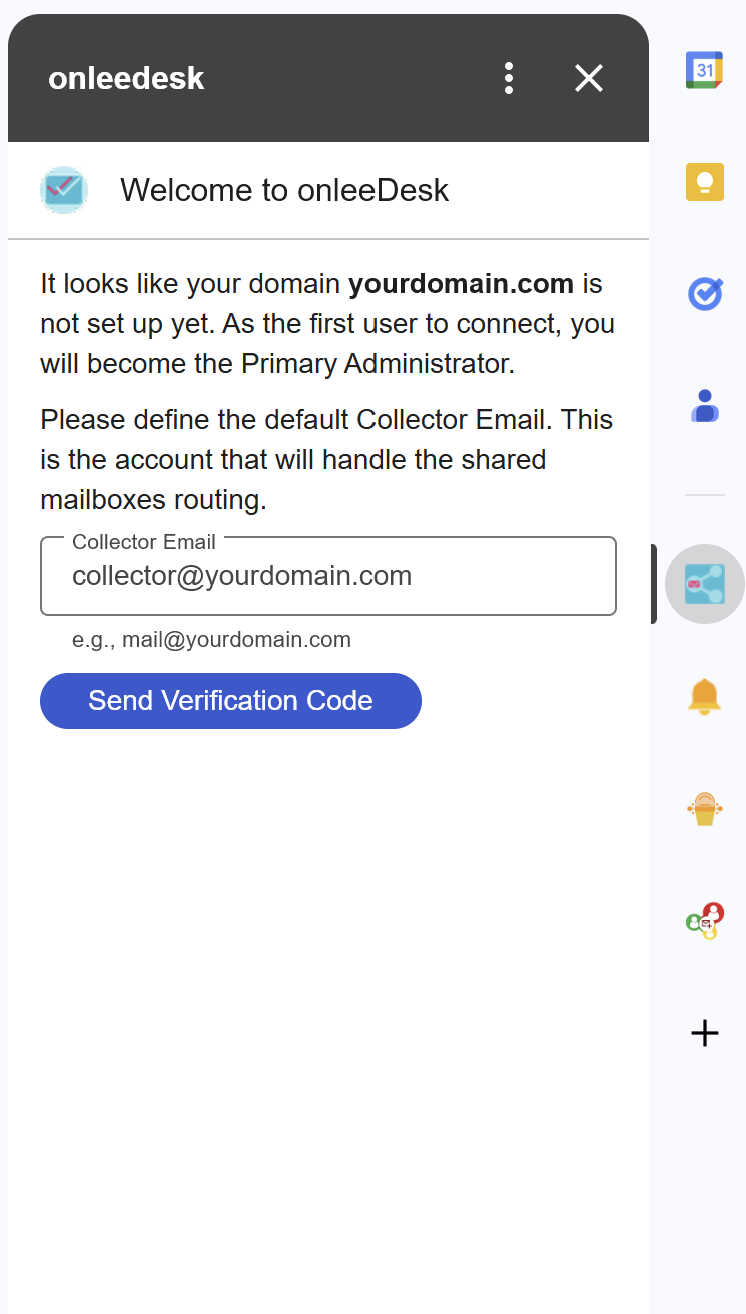
2 Validate the account by entering the 6-digit code.
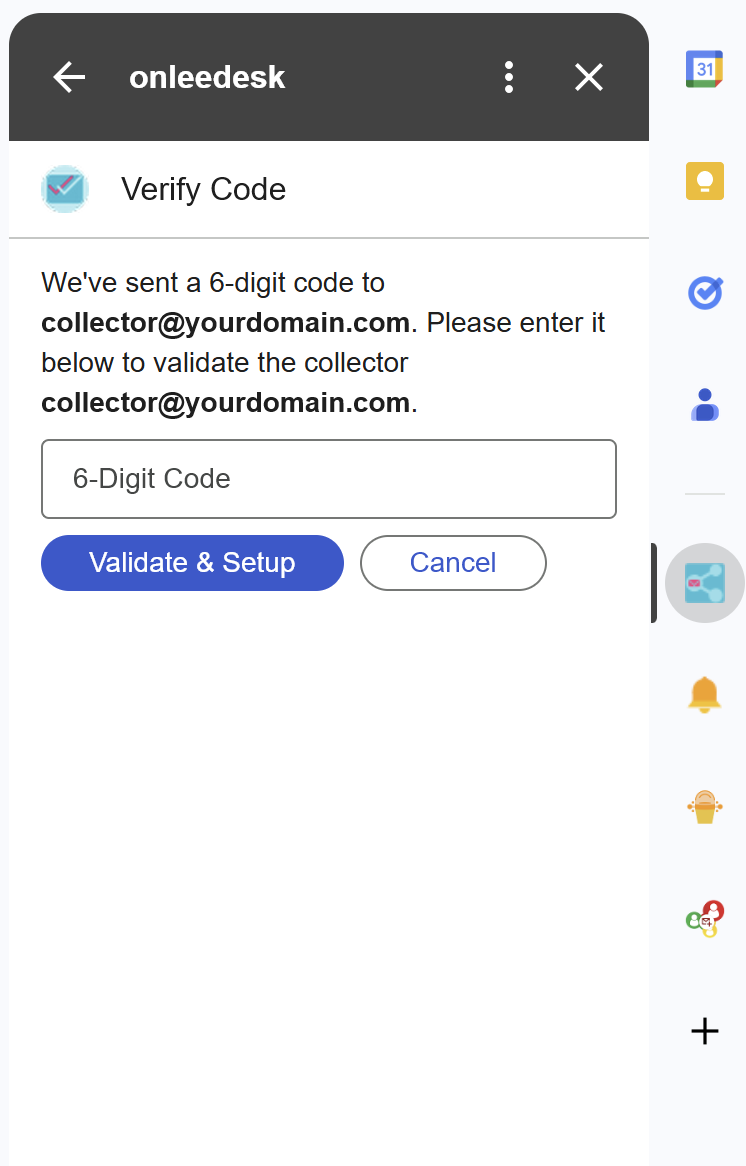
3 Once validated, you can proceed to set up mailboxes.
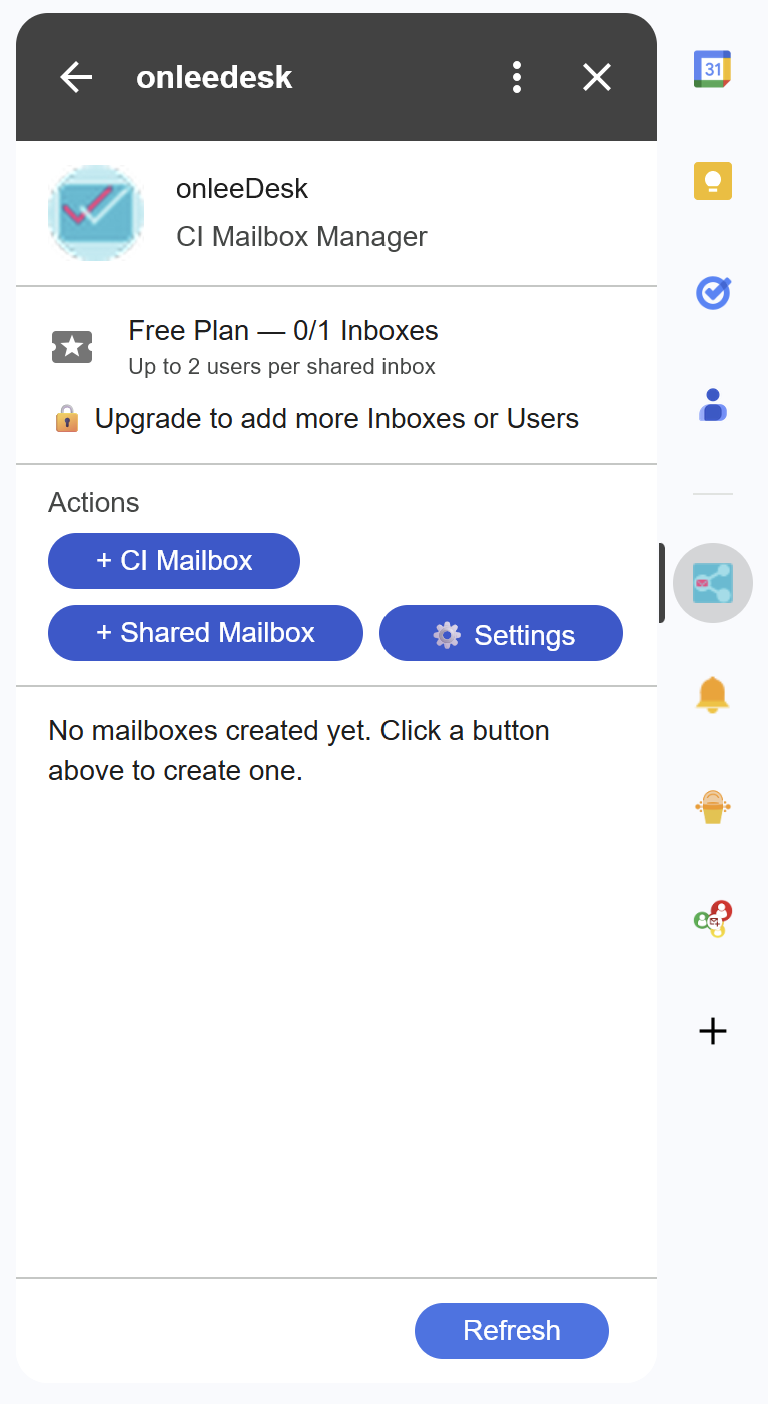
Create a shared mailbox
As a Workspace admin, first set an alias in the Google Admin console in order to add this alias to the collector account.
Then, with the primary admin account or a secondary admin account, you can set up the shared mailbox for the collector. Since the alias has already been set up for the Workspace collector's account, you can just add an account to the mailbox in onleeDesk.
1 In the Google Admin console, set an alias for the collector account.
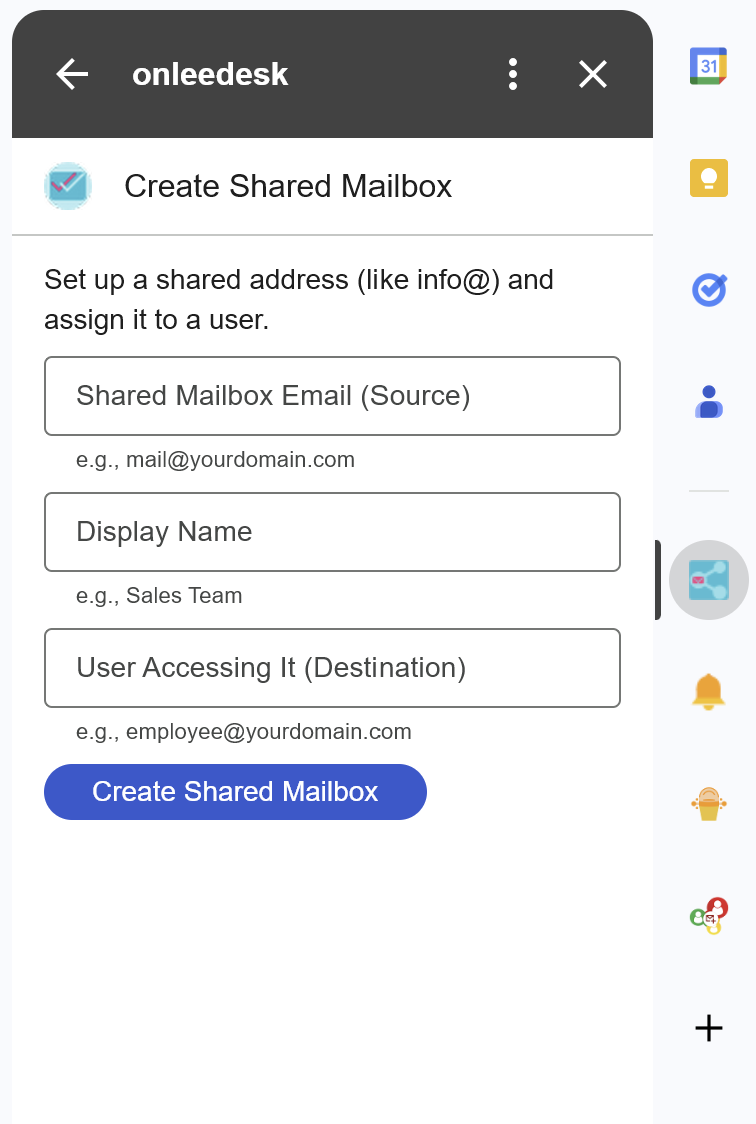
2 In onleeDesk, click the "+ Shared Mailbox" button.
3 Enter the required information in the form.
To add a new user to the shared mailbox, repeat steps 2 and 3. To add an entirely new shared mailbox, repeat all steps.
Note: Admins can create CI mailboxes and shared mailboxes up to the limits of the license tier purchased for the domain.
Create a CI Mailbox for a Cloud Identity account
Part 1: Google Admin Console Setup
1 Create a Cloud Identity (CI) Free account for the user.
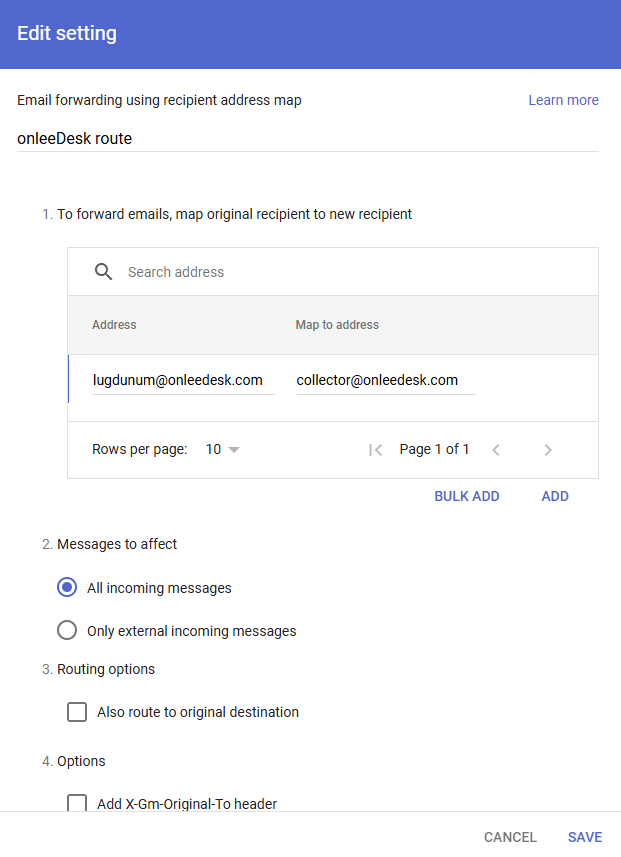
2 As a super admin, create an email routing rule in the Admin console to forward emails to your onleeDesk collector.
Go to "Email forwarding using recipient address map":
https://admin.google.com/ac/apps/gmail/routing and configure the rule.
Part 2: onleeDesk Add-on Setup
Once the setup in the Admin console is completed, go back to onleeDesk as the primary admin or a secondary admin.
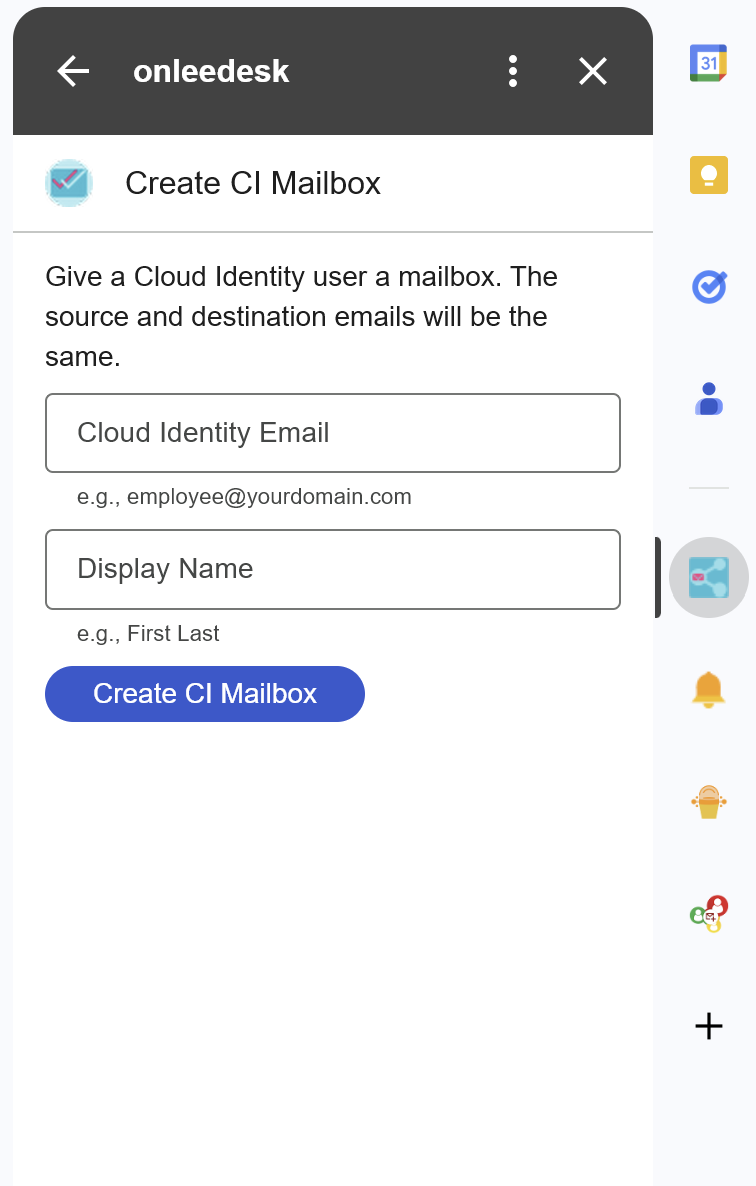
1 Click the "+ CI Mailbox" button.
2 Enter the Cloud Identity account email you just created in the form.
Quotas & Limitations
Because onleeDesk uses a central collector account, this specific account will send emails on behalf of all the connected user accounts. Based on that, the quotas and limitations of the Google Workspace account apply globally for all connected accounts under that collector.
- Maximum messages per day / Daily sending limit per user account* 2000
- Total recipients per day 10,000
- External recipients per day 3,000
- Unique recipients per day 3,000
- Max size attachment with onleeDesk 15 MB
You're all set!
Now you can start using onleeDesk to manage your shared and CI mailboxes efficiently directly from Gmail.